▶ Watch: set up Telegram alerts, step by stepCreate the bot in BotFather · get the token and your chat id · paste both into the cBot2:38
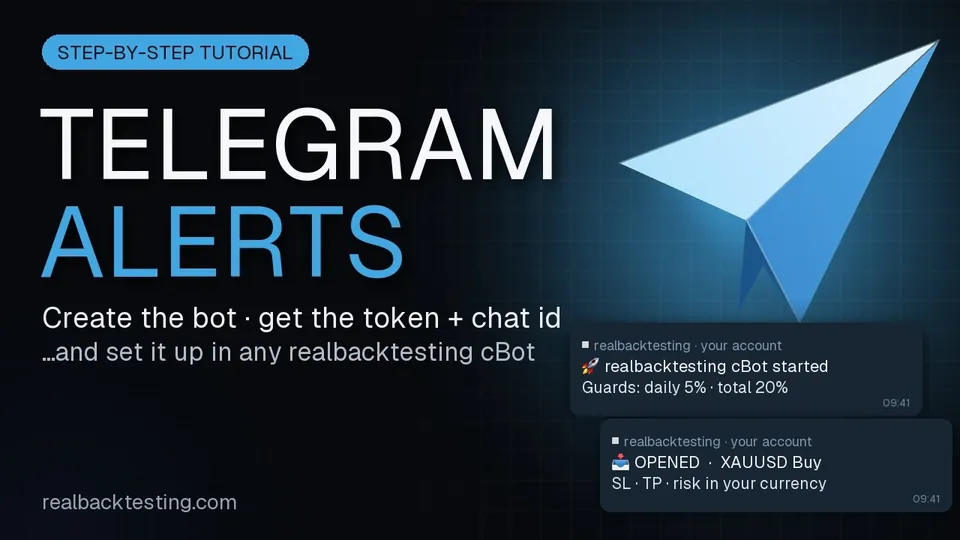
Pressing play loads the video from YouTube (youtube-nocookie.com).
Our cBots can send you a message every time something happens on your account: the bot starting, a position opening, a position closing with its profit or loss, a guard blocking new entries, a broker error. The messages go straight from your cBot to your Telegram, through a bot that you create and own.
Nothing passes through us. We cannot read those messages, and there is no server of ours in the middle — which also means there is nothing of ours to go down.
The price of that design is five minutes of setup. This page is those five minutes, in order, with the parts that usually go wrong marked.
Step 1 — Create your bot in BotFather
BotFather is Telegram's own bot for making bots. Open Telegram and search for @BotFather — the account with the blue verified badge.
- Start a chat with it and send
/newbot. - It asks for a name. This is the display name, shown in contact details. Anything readable works:
My Gold Alerts. - It asks for a username. This one has rules, and Telegram enforces them:
- between 5 and 32 characters
- Latin characters, numbers and underscores only
- must end in
bot— for exampletetris_botorTetrisBot - not case sensitive
When the username is accepted, BotFather replies with a congratulation message containing your token. It looks like this:
110201543:AAHdqTcvCH1vGWJxfSeofSAs0K5PALDsawTwo parts separated by a colon: a numeric bot id, then the secret.
If you ever leak it, send /token to BotFather. It issues a new one and the old one stops working immediately.
Step 2 — Send your bot a message first
This step looks pointless and it is the single most common reason setup fails.
Open a chat with your new bot and send it anything. /start, or just hello.
Why: a bot cannot open a conversation with you. Until you write to it first, any attempt to message you comes back as 403: bot can't initiate conversation with a user. Your bot exists, your token is valid, and nothing arrives.
Step 3 — Find your chat id
The chat id is the number that tells Telegram which conversation to deliver to. With the message from step 2 already sent, open this URL in your browser, replacing <TOKEN> with your token:
https://api.telegram.org/bot<TOKEN>/getUpdatesYou get back JSON. Look for "chat" and, inside it, "id":
{"ok":true,"result":[{"update_id":123456789,
  "message":{"message_id":1,
    "from":{"id":123456789,"first_name":"Alex"},
    "chat":{"id":123456789,"first_name":"Alex","type":"private"},
    "date":1786600000,"text":"hello"}}]}
That "chat":{"id": ...} is your chat id. For a private chat with yourself it is a positive number; for a group it is negative. Copy it exactly, minus sign included if there is one.
If result is empty
Three causes, in the order they actually happen:
- You never wrote to the bot — step 2. Send it a message.
- You wrote more than 24 hours ago — send another one now.
- You wrote to a different bot. If you have several bots they all deliver into the same Telegram app, and it is easy to message the wrong one. Check the chat header says the username you just created.
If you get an error instead of updates
{"ok":false,"error_code":409,"description":"Conflict: can't use getUpdates while webhook is active"}Something set a webhook on this bot. Telegram is explicit: "You will not be able to receive updates using getUpdates for as long as an outgoing webhook is set up." Clear it by visiting https://api.telegram.org/bot<TOKEN>/deleteWebhook and then reload getUpdates.
A 401 Unauthorized means the token is wrong — a truncated copy-paste, or a token you already replaced with /token.
Step 4 — Put both values into the cBot
In cTrader, open the cBot's parameters and find the Alerts group:
| Parameter | What to put |
|---|---|
Telegram alerts | On |
Telegram bot token | the full id:secret string from step 1 |
Telegram chat id | the number from step 3 |
Alert language | English or Spanish |
Alert on start · Alert trades · Alert guards and session · Alert errors · Daily summary | pick what you want to hear about |
Alert stop moves | see the note below |
Max alerts per day | a safety cap, 200 by default |
Start the cBot. Within a few seconds you should receive a startup message with the version, your account number, how many strategies are active and your guard settings.
Leave the token empty (or none) and the cBot never contacts Telegram at all. The alerts are off by absence, not by a switch.
The one setting worth thinking about
Alert stop moves tells you every time the bot moves a stop — trailing it up, or pulling it to breakeven. It is genuinely useful information, and it is also the noisiest thing in the list.
Measured on our own Edge book over five and a half years of backtest: 54,823 stop modifications, which is roughly 27 a day. A channel that receives three messages a day is one you read. A channel that receives thirty is one you mute — and a muted channel does not warn you about the guard that matters.
What the messages look like
Every message is headed by the product and the account number, because several cBots can report into the same chat:
▫️ realbacktesting Pegasus Gold · 9487469
🛠️ stop trailed PGLD-S01
GOLD · SL 4256.41
+8.00 EUR locked in
▫️ realbacktesting Edge FTMO Swing · 9487467
📥 OPENED PEGE-S07
XAUUSD Buy 1.25 lots @ 4261.30 · #16967974
SL 4195.25 | TP 4392.40
Risk -120.00 · target +360.00 EUR (RR 3)Amounts are in your account's currency, whatever it is. There is nothing to configure: the cBot reads it from the account, so the figure in the alert is the same figure your platform shows you. That is the point — a converted number you cannot check against your own terminal would be worse than no number.
A note on privacy
Your token and your chat id live in your cTrader parameters, on your machine. The cBot talks to api.telegram.org directly.
One thing worth knowing: cTrader prints a parameter table to its log when a cBot starts, and your token appears there truncated — the bot id plus the first few characters of the secret. That is the platform's own logging, not ours, and it cannot be switched off. It is not enough to reconstruct the token, but if you share a log publicly, know that it is in there.