Language
Default: EnglishLanguageThe language of the panel, its messages and its alerts: English, Spanish, French, Portuguese or Italian.
Available values: English / Espanol / Francais / Portugues / Italiano
Configuration guide · realbacktesting Tools
Four steps to start. Then what its plate says, how it works with the Risk Manager, the usual questions, and a plain answer for every parameter.
Guide checked against code v2.0 · On the cTrader Store
Get it from the cTrader Store, then in cTrader add the Risk Guardian to any chart of the account. One instance watches the whole account, every symbol.
Your daily and maximum loss, how the day is measured, the reset hour and what happens when a limit is hit. Every parameter is explained below.
It enforces your limits while it runs. For 24/7, run it in cTrader on a VPS; your own computer can then be off.
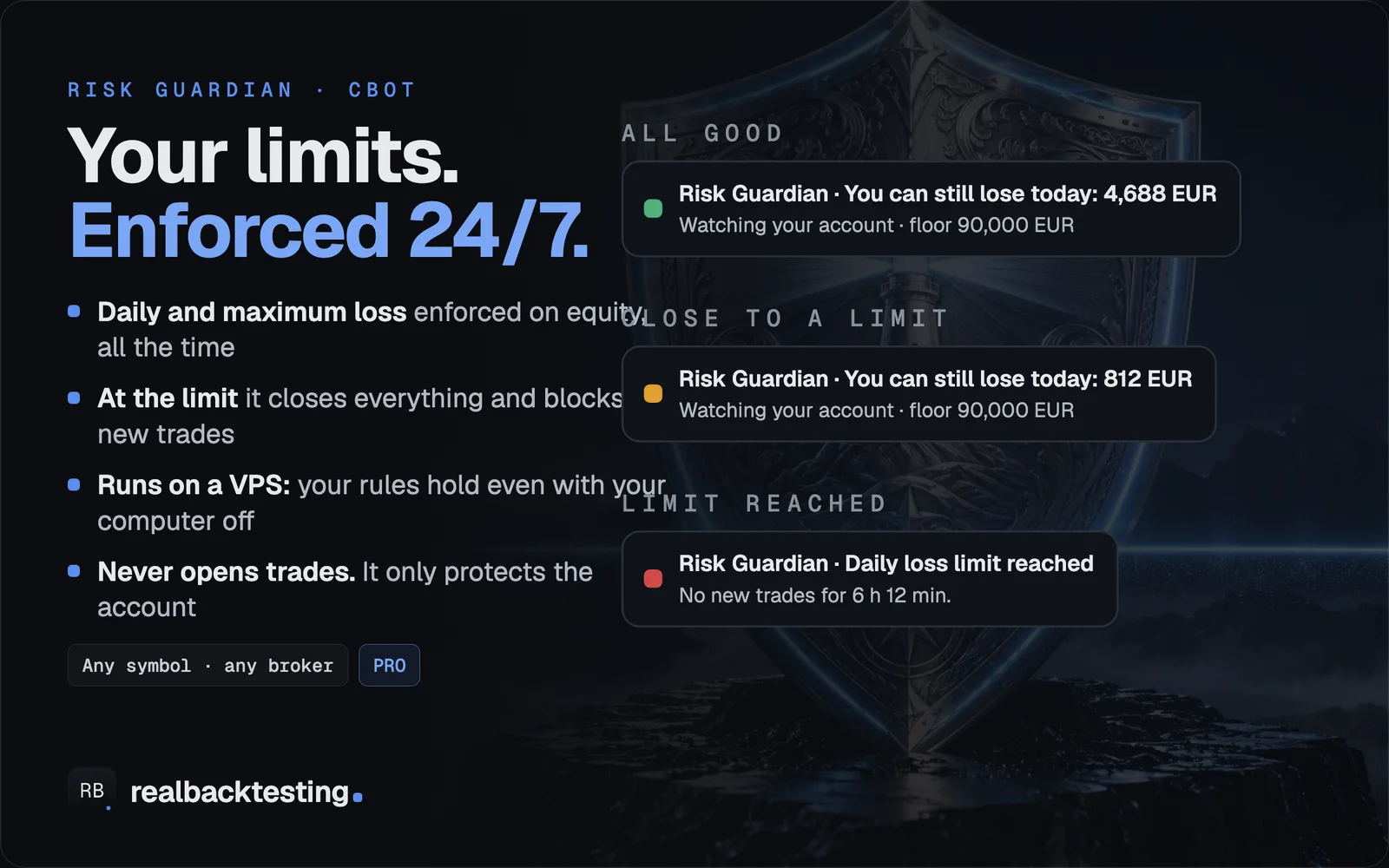
A status plate on the chart says how much you can still lose today, and turns amber near a limit and red when one is hit.
The texts follow the Language parameter. The figures below are examples.
Risk Guardian · You can still lose today: 4,688 EURGreen, all good: watching your account. Below, the floor of your maximum loss (“floor 90,000 EUR”).
Risk Guardian · You can still lose today: 812 EURAmber, close to a limit: past the warning % of a limit. You also get an alert.
Risk Guardian · Daily loss limit reachedRed, limit reached: depending on your setting, everything was closed or only new trades are blocked, until the reset. Below, how long is left (“No new trades for 6 h 12 min”).
Each one works on its own. Together, on the same computer they share the account state and only one acts:
A partial close already done by one is not repeated by the other. Risk Manager guide ↗
You were blocked (a limit, a trade count, a pause or outside your hours). A cBot cannot stop an order before it opens, so it closes it right after it opens; that costs spread and commission. If the same label keeps reopening, you get an alert to stop that cBot.
On purpose: the state is saved, and restarting the cBot, or removing it and adding it again, does not unblock the day. The block ends at the next reset (daily) or the next week (weekly).
Looser limits wait for the next reset by default. Set “Looser limits apply” to immediately if you want changes to apply at once.
No. It runs with cTrader’s normal permissions. Its state is saved in cTrader’s local storage on that computer or VPS.
The name under each title is the parameter as cTrader shows it. Defaults and ranges belong to this version of the code. PRO marks a parameter that only the PRO edition has; the Free edition shows only its own. Telegram alerts: bot token and chat id ↗
No matching setting. Try its name in the panel or clear the search.
LanguageThe language of the panel, its messages and its alerts: English, Spanish, French, Portuguese or Italian.
Available values: English / Espanol / Francais / Portugues / Italiano
Account template (Custom = the settings below)PRO. A starting point for your limits: Custom = the parameters below; two personal templates (2% daily / 10% maximum, and 4% / 20%) and two funded ones (5% daily from the balance at the reset with a 10% static maximum, and 3% daily with a 6% trailing maximum), both acting at 90% of the limit. Check them against your own firm’s rules.
Available values: Custom / Personal · cautious / Personal · active / Funded · static / Funded · trailing
Starting balance (0 = balance when first started)The balance your maximum loss and percentages are measured from. 0 = the balance when the Guardian first starts on this account. Changing it later starts the account from zero, but an active daily or weekly block is kept.
Available values: 0 → ∞
Daily loss limit %The most you allow yourself to lose in a day, as a %. It counts open trades: the loss is your equity against the day’s reference. 0 = no daily limit.
Available values: 0 → ∞
Daily loss limit amount (overrides %)The same limit as an amount of money. If it is above 0 it overrides the %.
Available values: 0 → ∞
Daily loss measured fromThe reference the day’s loss is measured from: the balance at the reset, the equity at the reset, the higher of both, or the day’s highest equity (so giving back today’s open profit also counts). Match your prop firm’s rule.
Available values: balance at reset / equity at reset / the higher of both / intraday equity peak
Daily % is a % ofWhat the daily % is calculated on: the starting balance (fixed, the usual prop firm rule) or the day’s reference (it moves with your account).
Available values: starting balance / daily reference
Maximum loss %The most you allow the account to lose in total, as a % of the starting balance. It counts open trades. 0 = no maximum loss.
Available values: 0 → ∞
Maximum loss amount (overrides %)The same limit as an amount of money. If it is above 0 it overrides the %.
Available values: 0 → ∞
Maximum loss typeStatic: the floor is the starting balance minus the maximum loss and never moves. Trailing end of day (PRO): the floor rises with the highest balance at the start of a day. Trailing intraday (PRO): it rises with the highest equity, even within the day.
Available values: static / trailing (end of day) / trailing (intraday)
Trailing loss stops at starting balanceFor the trailing types: once the floor reaches the starting balance it stops rising, as most funded accounts do. Off: it keeps rising with your peak.
Available values: true / false
Day resets atWhen a new trading day starts for the daily limit, the daily targets and the trade counts: midnight UTC, midnight Central European time, 17:00 New York, 17:00 Chicago, or an hour of your own. Daylight saving is handled.
Available values: 00:00 UTC / 00:00 Central Europe / 17:00 New York / 17:00 Chicago / custom UTC hour
Reset hour (UTC, for CustomUtcHour)The hour of the reset when Day resets at is your own hour, 0 to 23 UTC.
Available values: 0 → 23
When a limit is hitClose all and block: every trade of the account is closed, pending orders are cancelled, and any trade opened while blocked is closed right after it opens. Only block new trades: what is open stays open, and new ones are closed. A cBot cannot stop an order before it opens.
Available values: close all and block / only block new trades
Act at % of the limit (safety margin)A safety margin: act before the limit, for example at 90%, to leave room for slippage and gaps between the decision and the fill. 100 = act exactly at the limit.
Available values: 50 → 100
Warn at % of the limitWhen the loss reaches this share of a limit, the status turns amber and you get an alert.
Available values: 10 → 100
Looser limits applyTighter limits always apply at once. Looser ones (a higher limit, more trades…) wait for the next reset by default, so editing the settings in a bad moment does not unblock the day. Immediately: they apply at once.
Available values: at the next reset / immediately
ProtectPRO. Which trades the limits act on: all trades of the account (default), manual trades only, the Risk Manager panel’s trades only, or trades whose label contains a text. The loss is always measured on the whole account.
Available values: all trades of the account / manual trades only / this panel's trades only / label contains...
Label contains (Protect = LabelContains)The text for Protect = label contains.
Available values: Text
Weekly loss limit %The most you allow yourself to lose in a week, as a % of the starting balance, counting open trades. When hit, the week is blocked until the next week starts. 0 = off.
Available values: 0 → ∞
Daily profit target % (locks profits)Locks the day’s profit: when today’s result reaches this % of the starting balance, everything is closed and the day is blocked, so you do not give it back. 0 = off.
Available values: 0 → ∞
Weekly profit target %The same for the week: at this % of the starting balance, everything is closed and the week is blocked. 0 = off.
Available values: 0 → ∞
Best day max % of total profit (consistency)For consistency rules: no single day may make more than this % of your total profit. The panel shows how much you can still make today; when today reaches it, everything is closed and the day is blocked. 0 = off.
Available values: 0 → 99
Max trades per dayAfter this many trades in a day, new trades are closed right after they open, until the reset. 0 = no limit.
Available values: 0 → ∞
Max losses in a row (per day)After this many losing trades in a row in the same day, new trades are closed right after they open, until the reset. 0 = off.
Available values: 0 → ∞
Pause after a loss (minutes)After a losing trade, new trades opened during this many minutes are closed. 0 = off.
Available values: 0 → ∞
Trading hours UTC (e.g. 07:00-16:00, empty = always)Outside these hours, new trades are closed right after they open, for example 07:00-16:00. Open trades are not touched. Empty = always.
Available values: Text
Close everything at (UTC HH:mm, empty = off)Every day at this time (UTC, HH:mm) every trade of the account is closed, and you get an alert. Empty = off.
Available values: Text
Before the weekend closePRO. Off, warn me (the Free edition always warns), close everything or close half, a chosen number of minutes before the Friday close.
Available values: Off / warn me / close all / close half
Minutes before the closeHow long before the weekend close the action above happens.
Available values: 1 → 600
Sound alertsA sound with each alert, besides the on-screen banner.
Available values: true / false
Telegram alertsPRO. Alerts to your own Telegram bot: close to a limit, a limit hit, and when the Guardian is stopped. You need a bot token and your chat id: see our Telegram guide.
Available values: true / false
Telegram bot tokenThe token BotFather gives you when you create your bot. It is stored on your computer and never shown again in full.
Available values: Text
Telegram chat idThe chat where the bot writes to you.
Available values: Text
Email alerts to (uses cTrader email settings)An address for the same alerts. It uses the email settings of your cTrader. Empty = no email.
Available values: Text