Language
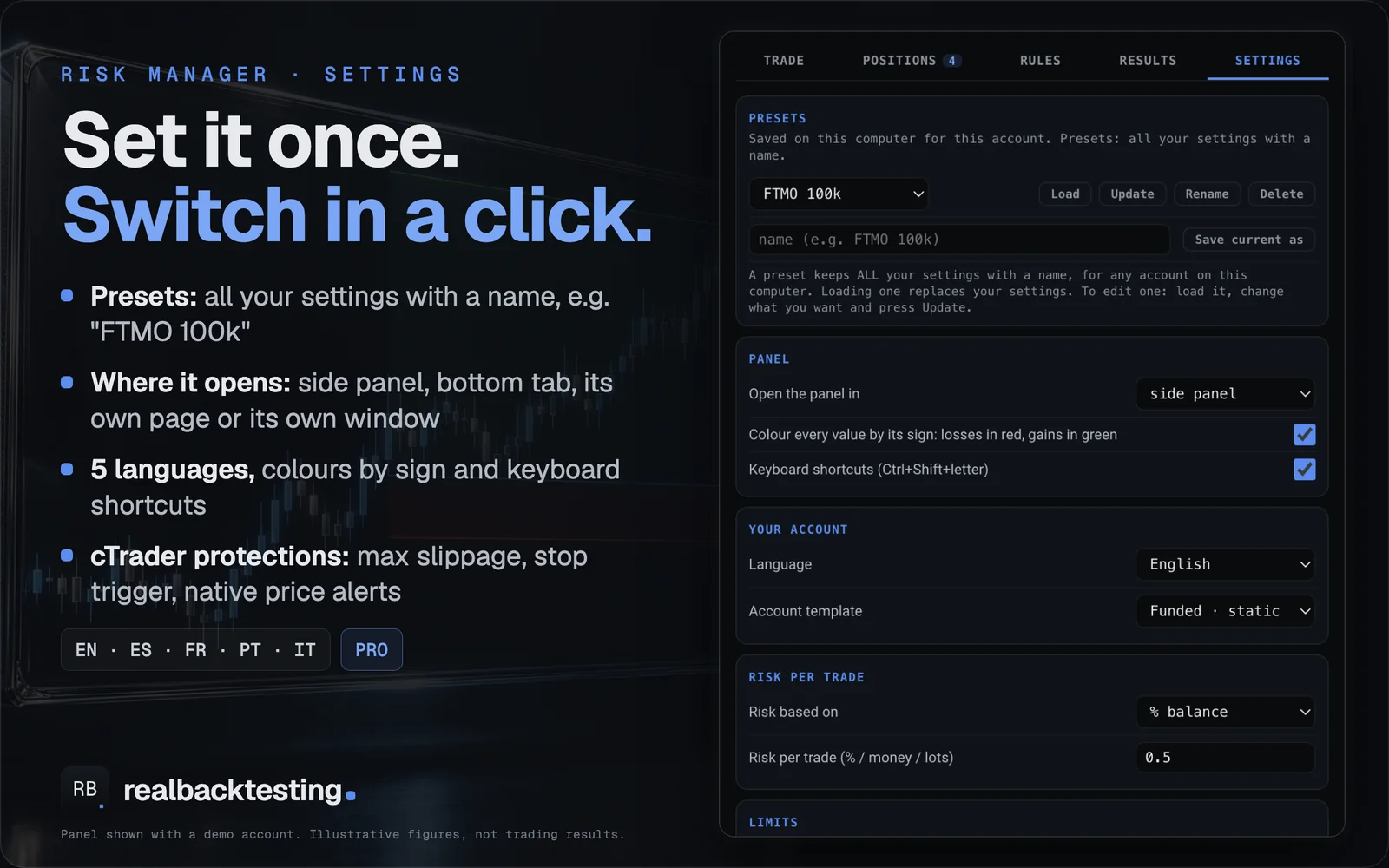
Default: EnglishLanguageThe language of the panel, its messages and its alerts: English, Spanish, French, Portuguese or Italian.
Available values: English / Espanol / Francais / Portugues / Italiano
Configuration guide · realbacktesting Tools
Four steps to start. Then the panel tab by tab, what travels with each order, the usual questions, and a plain answer for every setting.
Guide checked against code v2.0 · On the cTrader Store
Get it from the cTrader Store and restart cTrader. It appears in Plugins, and a Risk Manager button appears in the toolbar of every chart. By default it opens in the side panel.
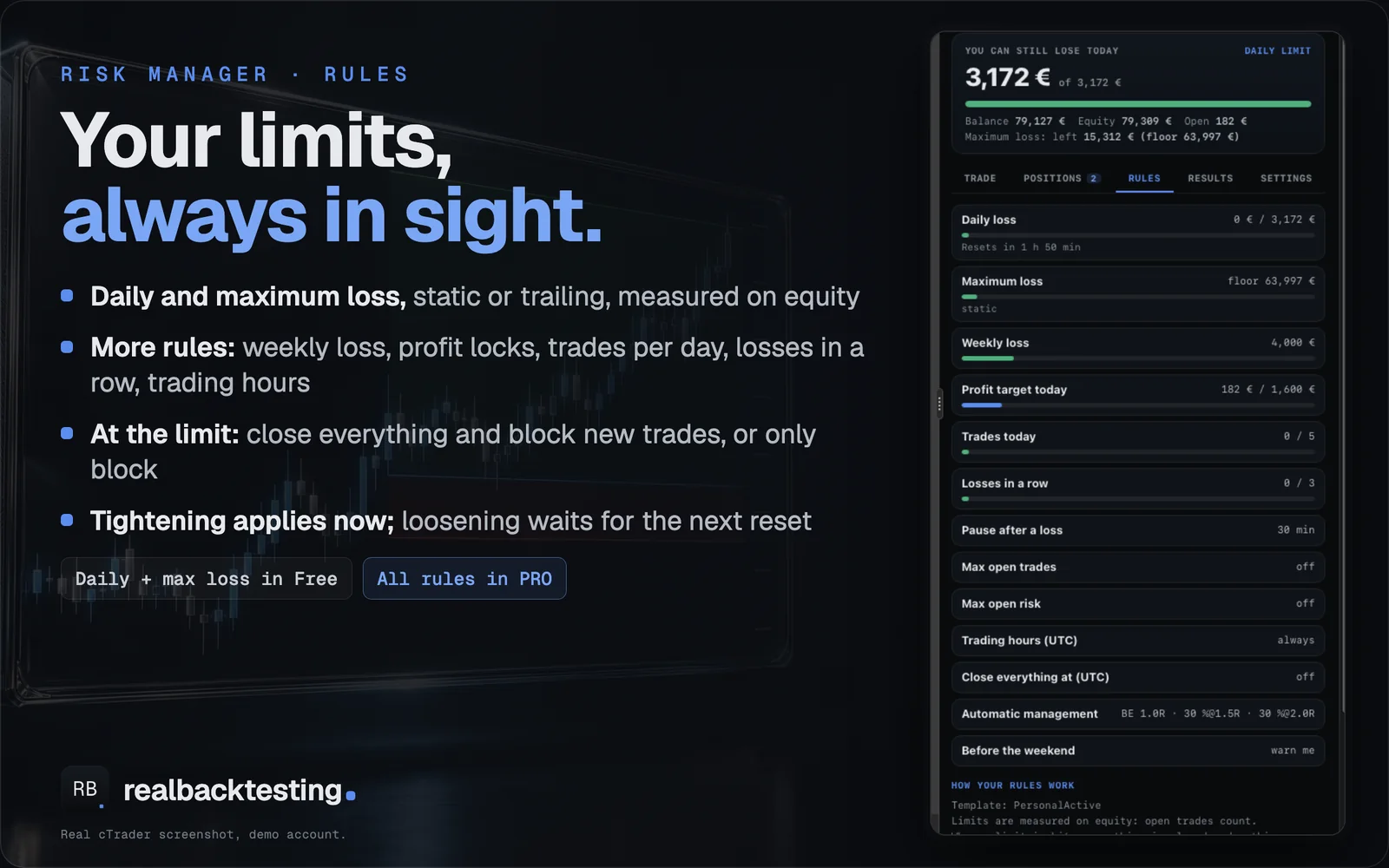
In Settings, choose an account template or your own daily and maximum loss, the reset hour of your broker or prop firm, and what happens when a limit is hit. They are saved on your computer for that account.
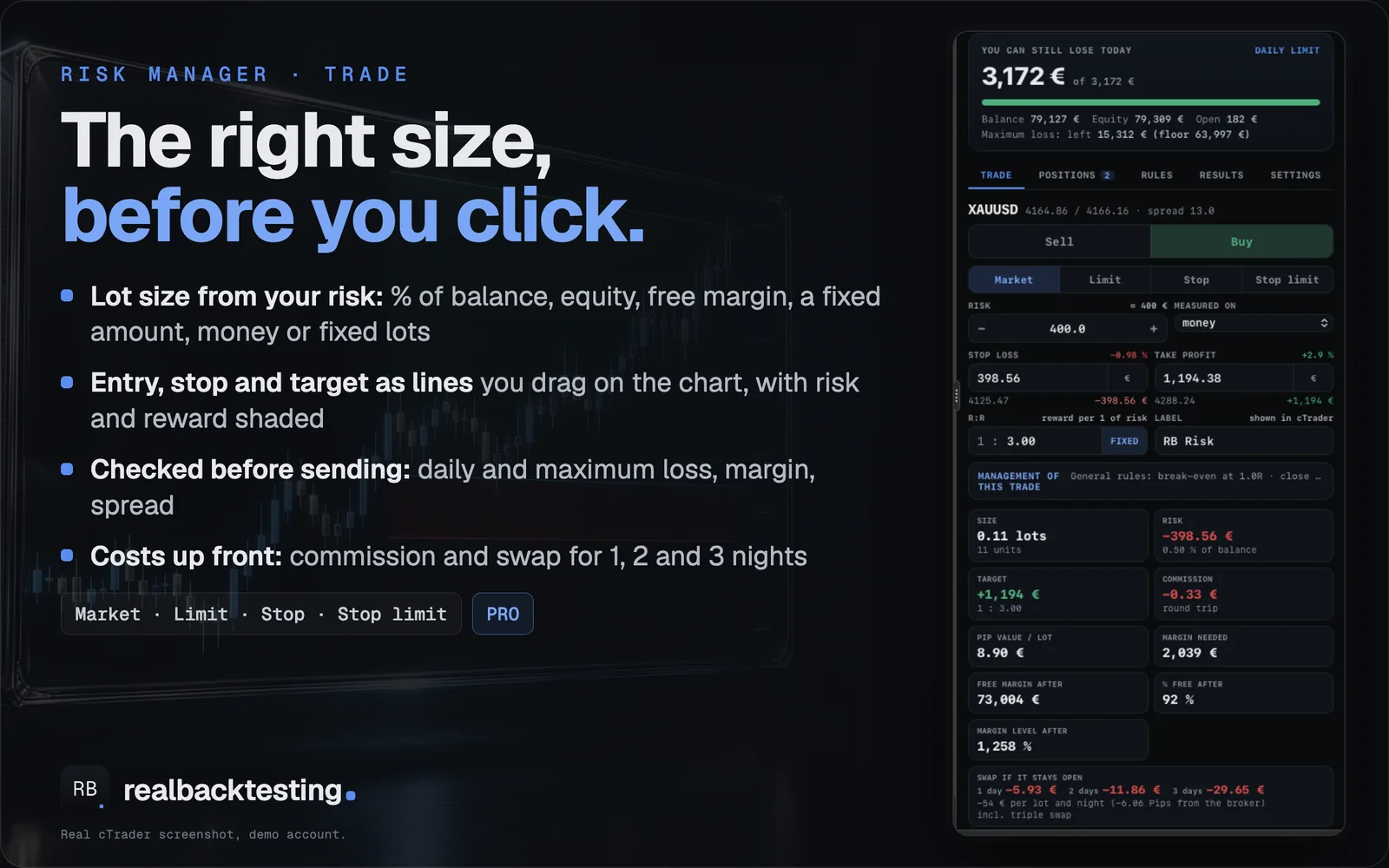
In Trade: buy or sell, your risk, and the stop and target in pips or by dragging their lines on the chart. With the R:R lock on, the target follows the stop.
The panel shows the lot, the money at the stop and at the target, the margin and whether it fits in what is left today. If it does not fit, it is not sent, and the panel offers the size that does.
Choose it in the plugin’s parameter in cTrader, or inside the panel in Settings › Panel. The Risk Manager button in each chart’s toolbar brings it to the front, or opens it again if you closed its window. The ticket follows the active chart.
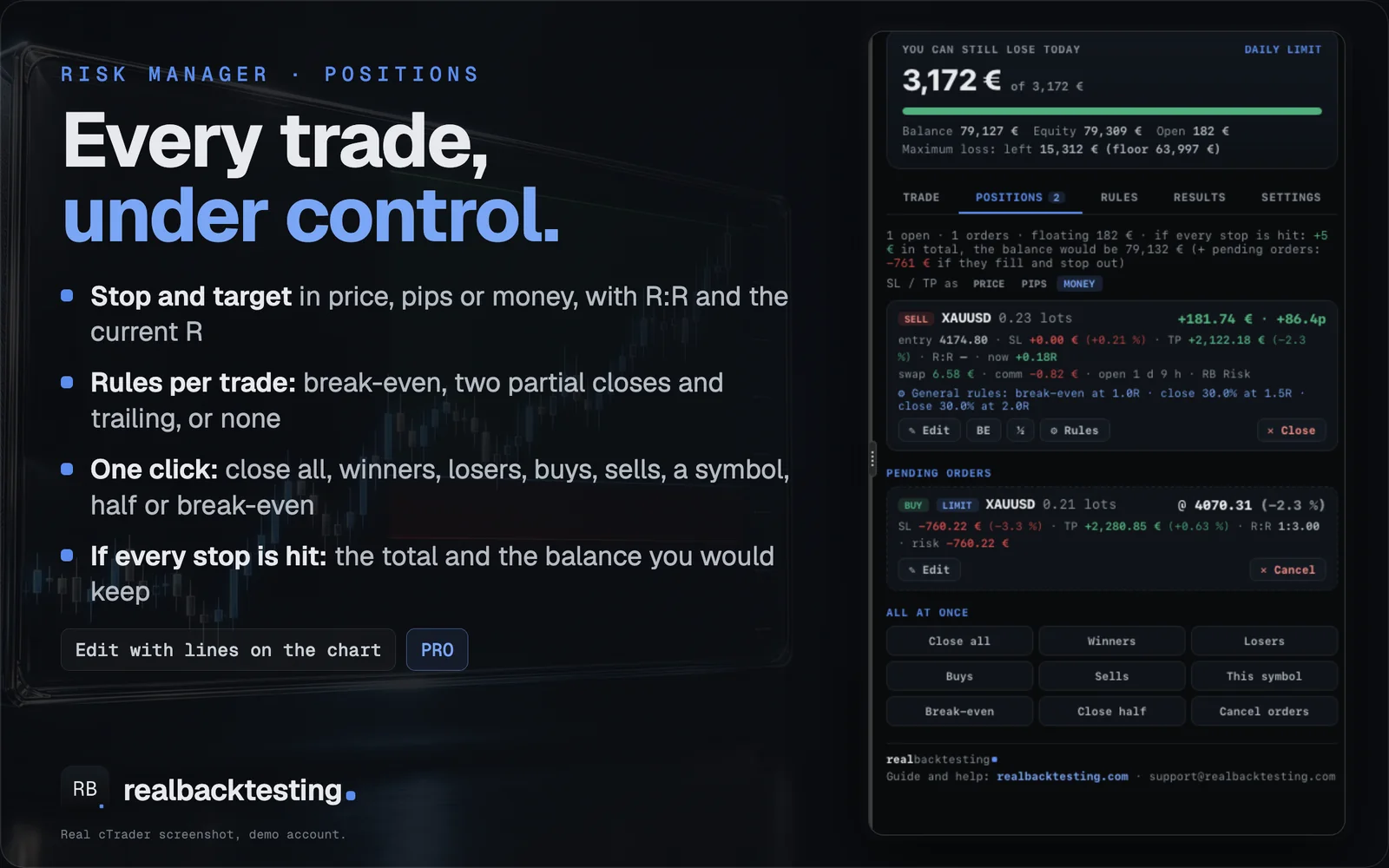
When you send an order from the panel, its management rules, its initial size and its initial risk travel inside the order itself. Who applies them, and when:
If the panel and the Guardian manage the same trade they do not step on each other: a partial close already done is not repeated. Risk Guardian guide ↗
Its loss at the stop, plus what every open trade and pending order would lose at theirs, would cross a limit (daily, total, weekly or max open risk). Lower the risk or widen nothing: the panel offers the largest size that fits. Nothing was sent, so no spread was paid.
Your stop is too wide for your risk on this symbol: even the broker’s minimum lot would lose more. Tighten the stop, raise the risk, or turn on “Allow the minimum size even if it risks more”.
With a maximum spread set (PRO), the panel’s pending orders are taken off the market while the spread is wider, and put back after 10 seconds at or under it. You can edit them meanwhile; raising the maximum makes them go back sooner. With the market closed nothing is withdrawn.
Looser limits wait for the next reset by default, so a change made in a bad moment does not unblock the day. The Rules tab shows it as pending and when it applies. If you want changes to apply at once, set “Looser limits apply” to immediately.
The panel never shows example figures inside cTrader. If it cannot read your account, it says so: restart the plugin, or cTrader. If it keeps happening, write to us with the message shown.
It belongs to the PRO edition. In the Free edition it is shown so you know it exists, but it is not applied.
All of them are in the panel, in Settings. The name under each title is the panel’s label in English. Defaults and ranges belong to this version of the code. PRO marks a setting of the PRO edition. Telegram alerts: bot token and chat id ↗
No matching setting. Try its name in the panel or clear the search.
LanguageThe language of the panel, its messages and its alerts: English, Spanish, French, Portuguese or Italian.
Available values: English / Espanol / Francais / Portugues / Italiano
Account templateA starting point that fills your loss limits for you. Custom uses your own settings below. Personal · cautious: 2% daily (from the higher of balance and equity at the reset), 10% maximum, suggested risk 0.5% per trade. Personal · active: 4% daily, 20% maximum, suggested 1%. Funded · static (PRO): 5% daily from the balance at the reset, 10% static maximum, reset at midnight Central European time, acting at 90% of each limit. Funded · trailing (PRO): 3% daily, 6% trailing maximum that stops at the starting balance, acting at 90%. Check them against your own firm’s rules: they are generic starting points.
Available values: Custom / Personal · cautious / Personal · active / Funded · static (PRO) / Funded · trailing (PRO)
Starting balance (0 = today's)The balance your maximum loss, targets and percentages are measured from. 0 = the balance when the panel first starts on this account. Changing it later starts the account from zero (limits, peak and trading days), but an active daily or weekly block is kept.
Available values: 0 → ∞
Open the panel inSide panel: next to the chart. Bottom: a tab next to Positions and Orders. Its own page: a full tab among your charts. Its own window: floating, so you can move it to another screen. The Risk Manager button in each chart’s toolbar brings it back. It is also the plugin’s only cTrader parameter.
Available values: side panel / bottom (next to Positions) / its own page (a tab among the charts) / its own window
Colour every value by its sign: losses in red, gains in greenOn: every loss in red and every gain in green, across the panel. Off: only the totals are coloured, the classic look.
Available values: On / Off
Keyboard shortcuts (Ctrl+Shift+letter)Ctrl+Shift+letter to buy, sell, close everything or move what is in profit to break-even. They go through the same checks as the buttons, and ask for confirmation if you have it on.
Available values: On / Off
Buy: letterThe letter for Ctrl+Shift+letter that buys with the ticket as it is.
Available values: Text
Sell: letterThe letter for Ctrl+Shift+letter that sells with the ticket as it is.
Available values: Text
Close everything: letterThe letter for Ctrl+Shift+letter that closes every trade of the account.
Available values: Text
Break-even of what is in profit: letterThe letter for Ctrl+Shift+letter that moves the stop of every trade in profit to its entry.
Available values: Text
Risk based onWhat the risk per trade is measured on. Free: % of balance or a fixed amount of money. PRO adds % of equity, % of free margin, % of a fixed amount you choose, and fixed lots (no sizing: the lot you type).
Available values: % balance / % equity (PRO) / money / lots (fixed) (PRO) / % free margin (PRO) / % of a fixed amount (PRO)
Risk per trade (% / money / lots)How much you risk on each trade, in the unit chosen above: a %, an amount of money or lots. The lot is calculated so that the loss at your stop equals this, and it is always rounded down.
Available values: 0 → ∞
Fixed amount for '% of a fixed amount' (0 = starting balance)The amount the % is measured on when Risk based on is “% of a fixed amount”, for example your prop firm account size: the risk stays the same even when the balance moves. 0 = the starting balance.
Available values: 0 → ∞
Default stop (x ATR 14, H1)Where the stop starts when you open the ticket: this many times the ATR(14) of the H1 chart from the entry. You can then type it in pips or drag its line. If there is no ATR yet, it starts 20 pips away.
Available values: 0.1 → ∞
Take profit (R:R, 0 = none)The target as a multiple of the stop distance, with the R:R lock on: move the stop and the target follows. 0 = no target and the lock off.
Available values: 0 → ∞
Maximum spread to enter at market (pips, 0 = no filter)A market order does not go in while the spread is wider than this. The panel’s pending orders are withdrawn while the spread is wider, and put back after 10 seconds at or under it (you can still edit them meanwhile). 0 = no filter.
Available values: 0 → ∞
Maximum slippage at market (pips, 0 = no limit)At market, if the order would fill further than this from the price you saw (news, gaps), it does not go in, so your risk stays the one you calculated. 0 = no limit.
Available values: 0 → ∞
The stop is triggered byThe cTrader stop trigger for the panel’s orders: the normal price (default), the opposite price, or either one twice in a row, so a single spike does not take you out.
Available values: the normal price (default) / the opposite price / the normal price, twice in a row / the opposite price, twice in a row
Include commission in the sizeOn: the commission of the round trip counts as part of the risk, so the lot is a little smaller and the loss at your stop, commission included, is what you asked for.
Available values: On / Off
Ask before sending or closingOn: every order and every close is described with its numbers and waits for Confirm. Off: it goes at once.
Available values: On / Off
Allow the minimum size even if it risks moreOff (default): if even the broker’s minimum lot would risk more than you asked, nothing is sent and the panel tells you how much the minimum would risk. On: the minimum lot is sent anyway.
Available values: On / Off
Orders need a stop lossOn: the panel does not send an order without a stop. Off: you can send one without a stop, and its risk cannot be sized or counted.
Available values: On / Off
Order labelThe label written on the panel’s orders. Useful to recognise them in cTrader’s history, or to filter them in other tools. In PRO you can also set a label per order in the ticket.
Available values: Text
Daily loss limit %The most you allow yourself to lose in a day, as a %. It counts open trades: the loss is your equity against the day’s reference. 0 = no daily limit.
Available values: 0 → ∞
Daily loss limit amount (overrides %)The same limit as an amount of money. If it is above 0 it overrides the %.
Available values: 0 → ∞
Daily loss measured fromThe reference the day’s loss is measured from: the balance at the reset, the equity at the reset, the higher of both, or the day’s highest equity (so giving back today’s open profit also counts). Match your prop firm’s rule.
Available values: balance at reset / equity at reset / the higher of both / intraday equity peak
Daily % is a % ofWhat the daily % is calculated on: the starting balance (fixed, the usual prop firm rule) or the day’s reference (it moves with your account).
Available values: starting balance / daily reference
Maximum loss %The most you allow the account to lose in total, as a % of the starting balance. It counts open trades. 0 = no maximum loss.
Available values: 0 → ∞
Maximum loss amount (overrides %)The same limit as an amount of money. If it is above 0 it overrides the %.
Available values: 0 → ∞
Maximum loss typeStatic: the floor is the starting balance minus the maximum loss and never moves. Trailing end of day (PRO): the floor rises with the highest balance at the start of a day. Trailing intraday (PRO): it rises with the highest equity, even within the day.
Available values: static / trailing (end of day) (PRO) / trailing (intraday) (PRO)
Trailing loss stops at the starting balanceFor the trailing types: once the floor reaches the starting balance it stops rising, as most funded accounts do. Off: it keeps rising with your peak.
Available values: On / Off
Day resets atWhen a new trading day starts for the daily limit, the daily targets and the trade counts: midnight UTC, midnight Central European time, 17:00 New York, 17:00 Chicago, or an hour of your own. Daylight saving is handled.
Available values: 00:00 UTC / 00:00 Central Europe / 17:00 New York / 17:00 Chicago / custom UTC hour
Reset hour (UTC, custom)The hour of the reset when Day resets at is your own hour, 0 to 23 UTC.
Available values: 0 → 23
When a limit is hitClose all and block: every trade of the account is closed, pending orders are cancelled and no new trades are allowed until the limit resets. Only block new trades: what is open stays open, pending orders are cancelled and nothing new goes in; a trade opened from elsewhere is closed right after it opens.
Available values: close all and block / only block new trades
Act at % of the limit (safety margin)A safety margin: act before the limit, for example at 90%, to leave room for slippage and gaps between the decision and the fill. 100 = act exactly at the limit.
Available values: 50 → 100
Warn at % of the limitWhen the loss reaches this share of a limit, the status turns amber and you get an alert.
Available values: 10 → 100
Looser limits applyTighter limits always apply at once. Looser ones (a higher limit, more trades…) wait for the next reset by default, so editing the settings in a bad moment does not unblock the day. Immediately: they apply at once.
Available values: at the next reset / immediately
ProtectWhich trades the limits act on: all trades of the account (default), manual trades only, the panel’s trades only, or trades whose label contains a text. The loss is always measured on the whole account.
Available values: all trades of the account / manual trades only / this panel's trades only / label contains...
Label contains (for 'label contains')The text for Protect = label contains.
Available values: Text
Weekly loss limit %The most you allow yourself to lose in a week, as a % of the starting balance, counting open trades. When hit, the week is blocked until the next week starts. 0 = off.
Available values: 0 → ∞
Daily profit target % (locks profits)Locks the day’s profit: when today’s result reaches this % of the starting balance, everything is closed and the day is blocked, so you do not give it back. 0 = off.
Available values: 0 → ∞
Weekly profit target %The same for the week: at this % of the starting balance, everything is closed and the week is blocked. 0 = off.
Available values: 0 → ∞
Best day max % of total profit (consistency)For consistency rules: no single day may make more than this % of your total profit. The panel shows how much you can still make today; when today reaches it, everything is closed and the day is blocked. 0 = off.
Available values: 0 → 99
Max trades per dayAfter this many trades in a day, no new ones until the reset. Pending orders are cancelled and trades already open are not touched; a trade opened meanwhile from elsewhere is closed. 0 = no limit.
Available values: 0 → ∞
Max losses in a row (per day)After this many losing trades in a row in the same day, no new trades until the reset. Pending orders are cancelled and trades already open are not touched; a trade opened meanwhile from elsewhere is closed. 0 = off.
Available values: 0 → ∞
Pause after a loss (minutes)After a losing trade, no new trades for this many minutes. Pending orders are cancelled and trades already open are not touched; a trade opened meanwhile from elsewhere is closed. 0 = off.
Available values: 0 → ∞
Max open trades and ordersThe panel does not send a new order when this many trades and pending orders are already open. 0 = no limit.
Available values: 0 → ∞
Max open risk % (all stops hit)The panel adds what you would lose if every open trade and pending order hit its stop. A new order that would take that above this % of the balance is not sent. 0 = off.
Available values: 0 → ∞
Max open risk % per symbolThe same check, symbol by symbol, so you do not stack too much risk on one market. 0 = off.
Available values: 0 → ∞
Trading hours UTC (07:00-16:00, empty = always)Outside these hours no new trades are allowed, for example 07:00-16:00. It can cross midnight (22:00-06:00). Pending orders are cancelled and trades already open are not touched; a trade opened meanwhile from elsewhere is closed. Empty = always.
Available values: Text
Close everything at (UTC HH:mm, empty = off)Every day at this time (UTC, HH:mm) every trade of the account is closed, and you get an alert. Empty = off.
Available values: Text
Only trade the symbols of this cTrader watchlist (empty = all)Write the exact name of one of your cTrader watchlists: the panel will not open trades on any other symbol. Empty = all symbols.
Available values: Text
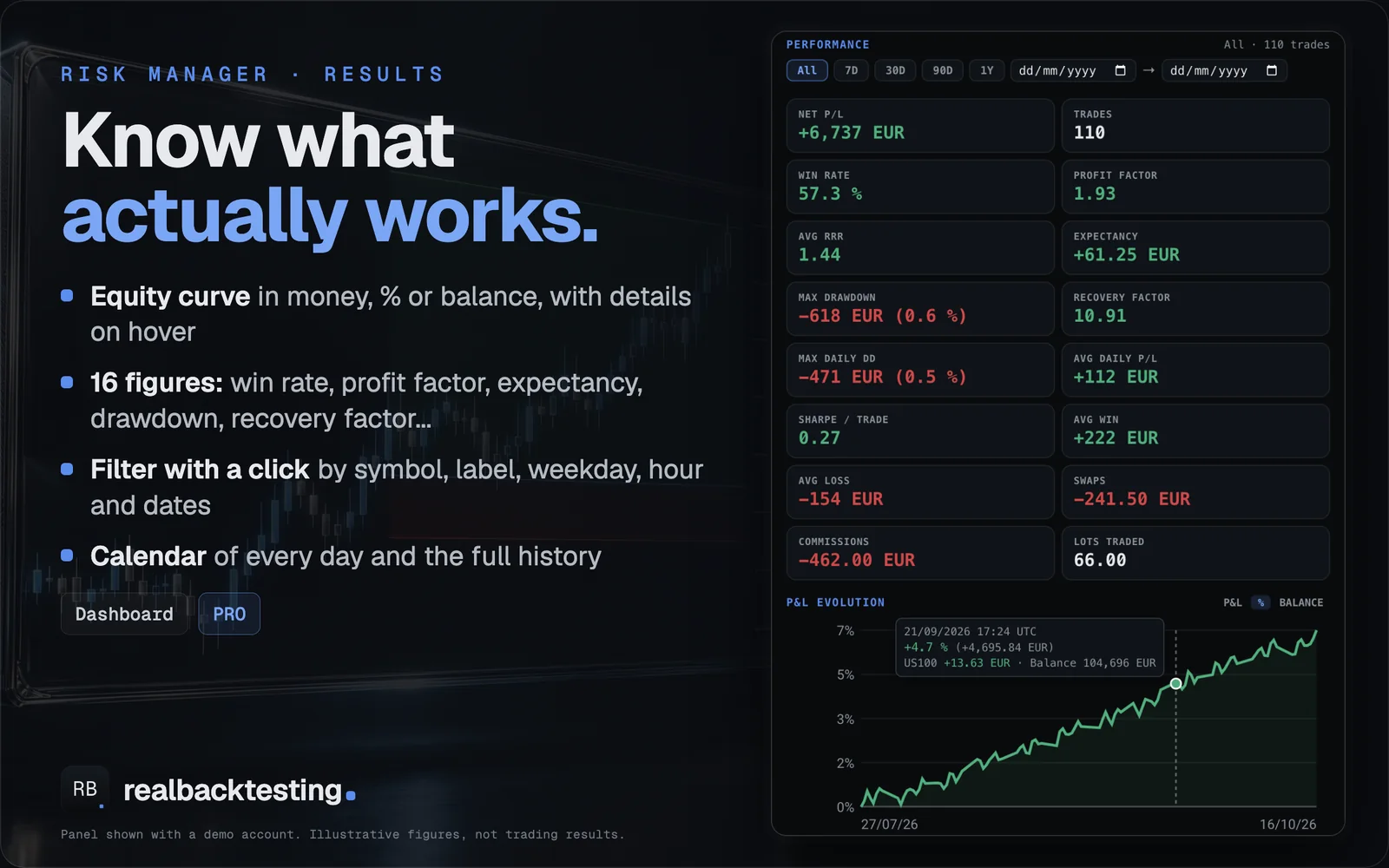
Profit target % (Results)A goal shown in the Results tab, for example a challenge target: how far you are from it. It does not close or block anything.
Available values: 0 → ∞
Minimum trading days (Results)A goal shown in the Results tab: how many trading days you have and how many you need. It does not close or block anything.
Available values: 0 → ∞
Manage trades automaticallyTurns on your general management rules below. Each order can also carry rules of its own, chosen in the ticket or later with the Rules button on its card, or none. The rules travel inside the order, so the Risk Guardian can apply them too.
Available values: On / Off
Break-even at R (0 = off)When a trade has gone this many times its initial risk in your favour (1 R = the distance to its first stop), its stop moves to the entry. 0 = off.
Available values: 0 → ∞
Break-even offset (pips)How many pips beyond the entry the break-even stop goes, for example to cover commission. 0 = exactly at the entry.
Partial 1 at R (0 = off)At this many R in profit, close part of the trade. 0 = off.
Available values: 0 → ∞
Partial 1 close %The % of the initial size closed at partial 1. A partial already done is never repeated.
Available values: 0 → 100
Partial 2 at R (0 = off)A second partial close at this many R. 0 = off.
Available values: 0 → ∞
Partial 2 close %The % of the initial size closed at partial 2.
Available values: 0 → 100
Partial 3 at R (0 = off)A third partial close at this many R. 0 = off.
Available values: 0 → ∞
Partial 3 close %The % of the initial size closed at partial 3.
Available values: 0 → 100
Trailing stopOff, in pips, or in multiples of the ATR. The stop follows the price at the distance below, from the R set in “Trailing starts at R”. In the ticket you can also choose the broker’s own trailing stop, which runs on the broker’s server even with cTrader closed.
Available values: Off / pips / x ATR
Trailing distance (pips or x ATR)How far behind the price the trailing stop stays, in pips or times the ATR.
Available values: 0 → ∞
Trailing starts at RThe trailing only starts once the trade is this many R in profit. It only ever tightens a stop.
Available values: 0 → ∞
Add a stop to trades without one: pips (0 = off)A trade opened without a stop (from the platform’s ticket, your phone…) gets one this many pips away. 0 = off.
Available values: 0 → ∞
...or at % risk of balance (0 = off)Instead of pips, the stop is placed where that trade would lose this % of the balance. 0 = off.
Available values: 0 → ∞
After N losses in a row, cut risk (0 = off)After this many losing trades in a row, the risk per trade is multiplied by the factor below until you win one. 0 = off.
Available values: 0 → ∞
...risk multiplier until a winFor example 0.5 risks half until the next win.
Available values: 0.1 → 1
Keep the risk when a pending order's stop is movedMove the stop of one of the panel’s pending orders further away and its size is reduced to keep the same risk. Move it closer and the size is not increased.
Available values: On / Off
Before the weekend closeOff, warn me, close everything (PRO) or close half (PRO), a chosen number of minutes before the market closes for the weekend. Weekend gaps can jump past a stop.
Available values: Off / warn me / close all (PRO) / close half (PRO)
Minutes before the closeHow long before the weekend close the action above happens.
Available values: 1 → 600
cTrader alert when a trade has gone this % of the way to its stop (0 = no)A native cTrader price alert when a trade has gone this % of the way to its stop. It also reaches the cTrader app on your phone, and it follows the stop if you move it. 0 = no.
Available values: 0 → 99
Sound alertsA sound with each alert, besides the on-screen banner.
Available values: On / Off
Telegram alertsAlerts to your own Telegram bot: close to a limit, a limit hit, actions taken. You need a bot token and your chat id: see our Telegram guide.
Available values: On / Off
Telegram bot tokenThe token BotFather gives you when you create your bot. It is stored on your computer and never shown again in full.
Available values: Text
Telegram chat idThe chat where the bot writes to you.
Available values: Text
Email alerts to (uses cTrader email settings)An address for the same alerts. It uses the email settings of your cTrader. Empty = no email.
Available values: Text
Shade the risk (red) and the target (green)Shade the risk in red (entry to stop) and the target in green (entry to target) between the ticket’s lines.
Available values: On / Off
Hide the cTrader lines of open trades and orders while I prepare a new oneHide the cTrader lines of open trades and orders while you prepare a new one, so you grab the right line. They come back when the ticket lines are off. While you edit a trade they are always hidden on that chart.
Available values: On / Off
Show my open trades and orders on the chart (zones and figures)Each open trade and pending order of the chart’s symbol with its red and green zones; the figures on them are PRO. The lines are cTrader’s own and can be dragged as usual.
Available values: On / Off
Shade intensity %How strong the red and green shading is, from 5% to 90%.
Available values: 5 → 90
Write price, pips, % and money on the linesWrite the price, the pips, the % and the money on the entry, stop and target lines.
Available values: On / Off
Line labelsShort: price and money, easier to read. Full: also the pips, the % move and the label.
Available values: short: price and money (easier to read) / full: also pips, % move and label